


Follow these steps after purchase. Allow 15–20 minutes for first preview.
Before you begin
You will need:
- A Windows 10 or 11 PC
- Your license key (from purchase confirmation email)
- An OpenAI API key (platform.openai.com)
- A Gmail account
- Internet connection
Inbox Maid is a one-time purchase ($49.99, 2 devices). OpenAI usage is billed separately by OpenAI.
Step 1 — Download and install
- Download the installer from inboxmaid.com/download
- Run
InboxMaid-Setup-x.x.x.exe - Follow the installer prompts
- Launch Inbox Maid from the Start menu
Note: Unsigned builds may show Windows SmartScreen warnings until Authenticode signing is complete. See Troubleshooting if blocked.
Step 2 — Activate your license
- On first launch, read Terms of Use and Privacy Policy
- Scroll to the end of each document and agree
- When prompted, paste your license key from your receipt email
- Click Activate
The app verifies your key online. Brief offline grace applies if validation is temporarily unavailable.
Two devices: Each license supports 2 active PCs. To move to a new computer, deactivate the old device or email support@kingmakeranalytics.com.
Step 3 — Add your OpenAI API key
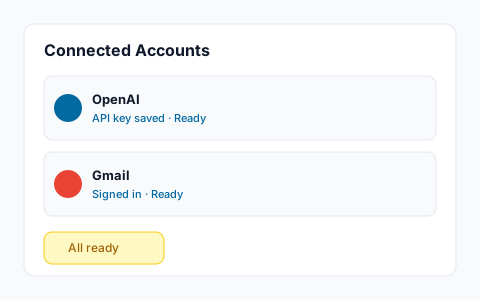
- Open Settings → Connected Accounts
- Enter your OpenAI API key
- Click Save API Key
Your key is stored in Windows Credential Manager — not in plaintext files.
Step 4 — Connect Gmail
Production builds use built-in Gmail sign-in — you do not create your own Google Cloud project.
- Open Run Cleanup
- Confirm readiness chips show OpenAI Ready
- Click Run Preview
- Complete Google sign-in in your browser when prompted
- Approve the requested Gmail permissions
Details: Security & Gmail access
Preview tip: Keep Apply changes to inbox OFF until you have reviewed every suggestion.
Step 5 — Run your first preview
- Stay on Run Cleanup
- Keep Apply changes to inbox OFF
- Set Emails to process now (start with 25)
- Click Run Preview
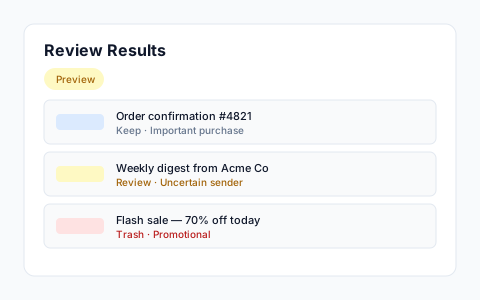
- Open Review Results to inspect suggestions
Nothing in Gmail changes during preview.
Step 6 — Apply when ready (optional)
- When preview results look correct, return to Run Cleanup
- Enable Apply changes to inbox
- Confirm the destructive-action warning
- Run again with apply enabled
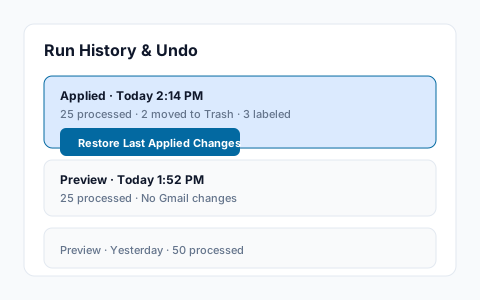
Trash moves can be undone from Run History & Undo for the most recent applied run.